 MetaKraftwerk

Agents
Visual overview
This video provides a step-by-step tutorial on how to install and configure the MetaKraftwerk Agent.
What is the MKW Agent?
The MetaKraftwerk Agent is a lightweight client application that acts as a bridge between your local machine and the MetaKraftwerk platform. It is required for secure authentication, deployment, and synchronization of your work with the MetaKraftwerk API. The agent ensures that all operations are performed securely and that your credentials are managed safely.
Why do you need the MKW Agent?
- It enables secure communication between your system and MetaKraftwerk.
- It handles authentication with your organization's identity provider (e.g., Azure Active Directory).
- It manages deployment sessions and caches your login for convenience.
How to Create an Agent ID
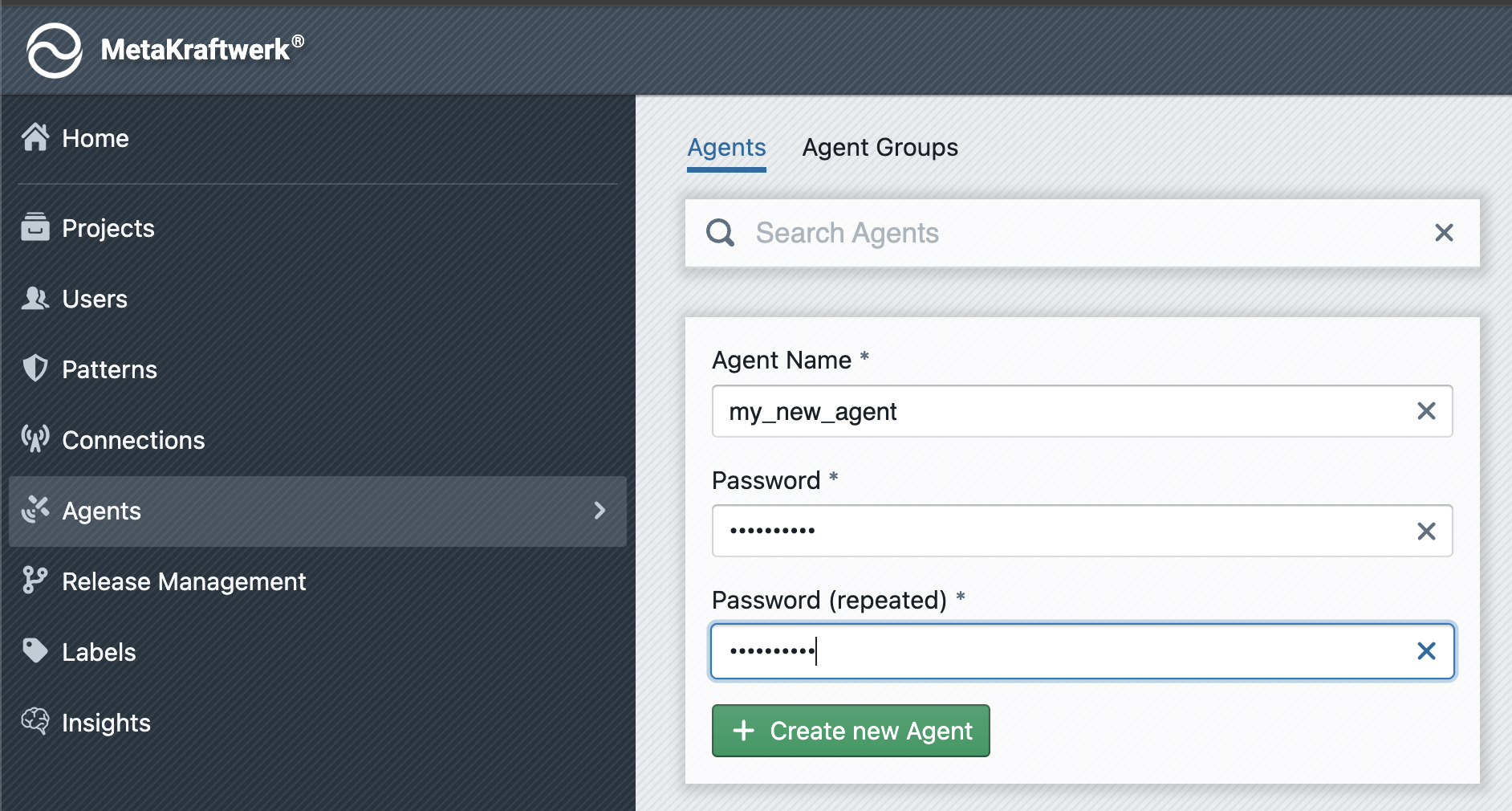
To create a new agent ID, go to the 'Agents' section in the admin area. There you can create a new agent at the top. First, you must enter a name and password for your new agent. Then click on + Create new Agent. The agent will now appear in the list of all existing agents.
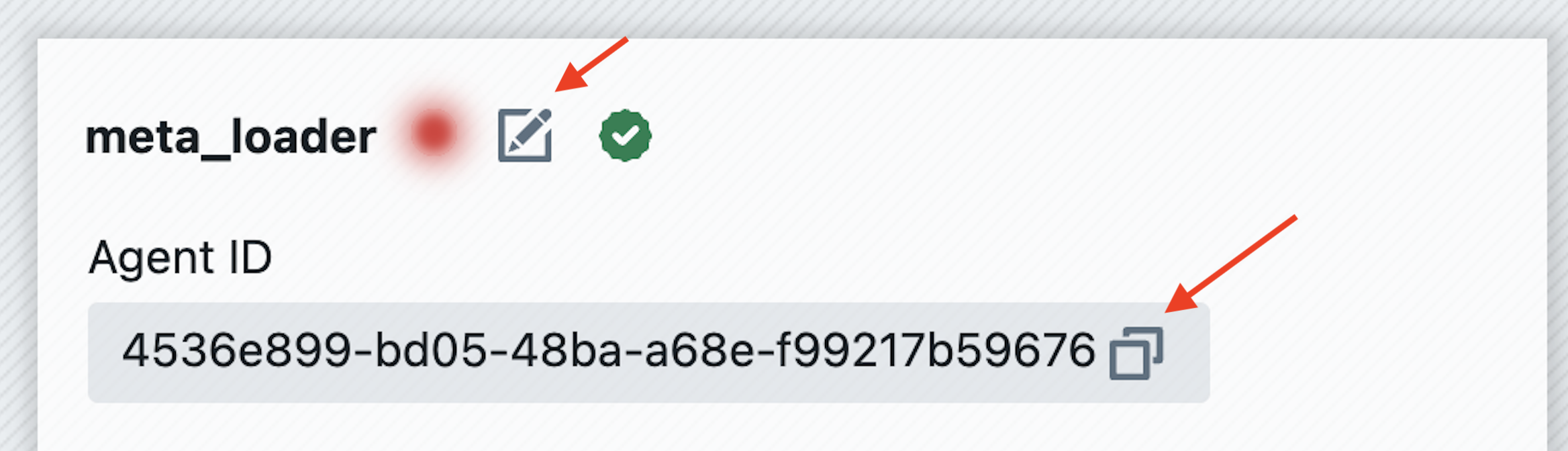
To obtain an agent's ID, click on the edit icon next to an agent. The agent ID will then be displayed, which you can copy by clicking on the copy icon.
Installation and Configuration
1. Set Environment Variables
Before installing the agent, you can set the following environment variables on your system:
| Variable | Value Description |
|---|---|
MKW_AGENT_ID | Your personal Agent ID |
MKW_PASSWORD | The password associated with your Agent ID (provided by your admin) |
... | Add further environment variables which you have used in the connection definition |
How to set environment variables:
- Open the Windows Start menu and search for "Environment Variables".
- Click on "Edit the system environment variables".
- In the System Properties window, click "Environment Variables...".
- Under "User variables", click "New..." and add each variable with its corresponding value.
- Click OK to save.
2. Download and Install the MKW Agent
Download the installer:
You can download the MKW Agent Installer using the link below: Download MKW Agent InstallerRun the installer:
Double-click the setup file to start the installation. The process takes about one minute.First launch:
After installation, the agent will start automatically. If the environment variables are set correctly, you will be logged in automatically.Pin to taskbar (optional):
For quick access, right-click the agent icon in the taskbar and select "Pin to taskbar".
3. Using the MKW Agent
- Once the agent is online, select it in the MetaKraftwerk web interface (top right menu).
- When you start a deployment or fetch metadata via the agent, the flow of metadata will go from the target system to MetaKraftwerk via the agent or vice versa.
- For connections which require Two-Factor-Authentication, a browser window will be opened on the system where the agent runs. Please watch out for this and confirm the authentication.
- The sessions will be cached, so you won’t need to log in again until you restart your system or the expiry time of a session has been reached.