 MetaKraftwerk

Overview of the web application
The MetaKraftwerk application has two main areas:
- Projects: Where the real work takes place: Here you develop patterns, transforming metadata, build process instances and so on
- Admin console for basic administration: Creating users, projects, patterns and other top-level objects
Project Overview
A project is divided into three main sections:
The menu bar, which displays information about the current customer, the project, and the user
The sidebar, which allows you to switch between different subsections of the application: the project summary, the previous builds, the existing patterns and instances, and the Meta Database.
The main window, which shows different views depending on the selection in the sidebar
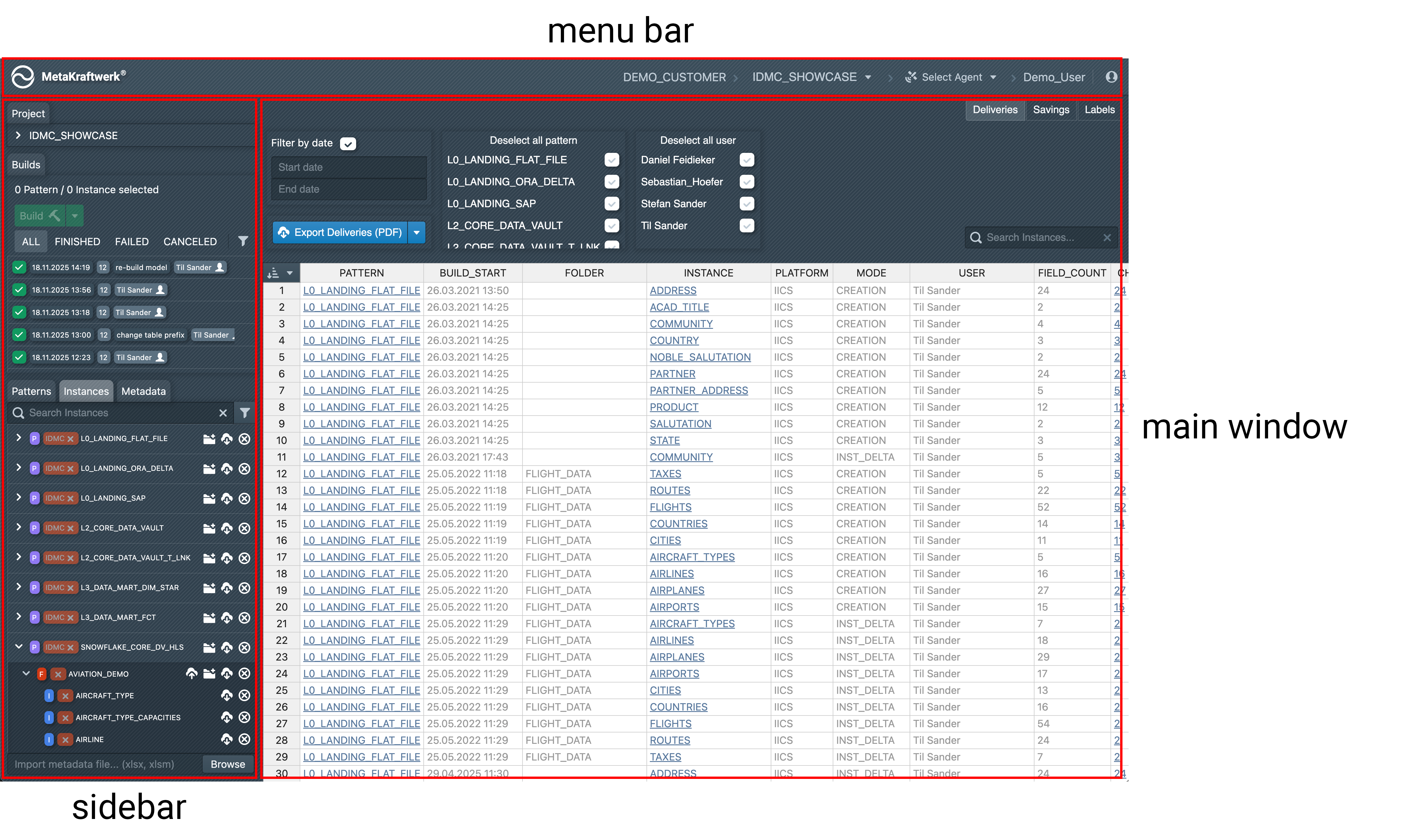
A project is a logical grouping of related development objects. From the top menu bar, you can open the Projects dropdown and switch between available projects. Each project contains its own patterns, instances, builds and metadata. Below is a video showing a short Project Overview for better understanding.
Sidebar Navigation
On the left-hand side, the sidebar organizes the main categories of the selected project:
- Builds: Shows the history of build executions, including their status (Finished, Failed, Canceled) and the user who executed them.
- Patterns: Displays reusable design patterns that can be instantiated.
- Instances: Lists all existing instances of a pattern
- Metadata: Here you can access the meta database of the project
Central Workspace
The central workspace updates depending on the selected element in the sidebar:
- If a Pattern is selected, its Editors, Properties, and Files (SQL, DDL, job scripts, etc.) are displayed. Tabs such as Description, Functional Roles, Instance Properties, Constraints, Files, Reusable Expressions, Variables, Deployments, History, and Labels allow configuration of the selected pattern.
- If you select a Instance, you will see the instance metadata displayed as a table
- Selecting a build, you will see the build results, changed instance metadata and a list of deployments
- When selecting an object of the meta database, you will see the database object in the main area
Admin Console Overview
This video provides a visual overview of the admin console. The admin console has the following sections:
1. Start: Admin Area (Home)
After logging in, you will land on the Home dashboard. Here you get an overview of:
- Projects: List of all available projects you can access.
- Users: List of users with their email addresses.
- Patterns: Overview of available patterns and their technologies.
- Help: Access to the documentation or bug reporting / support
2. Projects
Click on Projects in the left menu to see all projects you have access to.
For each project, you can:
- View and manage users (add/remove users, set privileges)
- See and manage patterns assigned to the project
- View project owners
Note
You can only see and manage projects if you have the permissions to manage projects.
3. Users
The Users section allows you to:
- Search for users
- Create new users (set username, email, privileges, and password)
- Assign users to projects and set their privileges
4. Patterns
In the Patterns section, you can:
- Search and view available patterns
- Create new patterns
- See which technology each pattern is based on (e.g., Informatica PowerCenter, Azure Synapse Analytics)
- Edit or delete patterns (if you have the required permissions)
5. Connections
The Connections area is for managing data source and API connections.
You can:
- Create new connections
- Edit or delete existing connections
Supported connection types include REST APIs, databases (MySQL, PostgreSQL, Oracle, etc.), cloud services, and more. A complete list of supported APIs/Connections can be found here.
6. Agents
In the Agents section, you can:
- Create new agents (set name and password)
- Assign agents to projects
- Get the ID if existing agents
7. Release Management
The Release Management area allows you to:
- Organize releases into release groups
- Create and manage releases (set timeframes, open/close releases)
- Track the status of each release
8. Labels
To categorize and easily find objects in your projects, you can define labels. Labels consist of a name and a color and can be added to instances and other objects. Labels can be defined on three levels:
- Global Level: Labels that are available across all projects.
- Project Level: Labels that are specific to a particular project.
- Pattern Level: Labels are only available for objects and instances within the pattern.
This hierarchical structure allows for flexible organization and easy retrieval of objects based on their assigned labels.