 MetaKraftwerk

Part 8 (optional) - Create a Master Pipeline in Synapse
When working with multiple data ingestion or transformation notebooks (such as the Landing to Bronze layer), running each manually can be inefficient. A master pipeline solves this problem by:
- Centralizing configuration and parameters.
- Automatically distributing notebook execution.
- Supporting parallelism for improved performance.
- Scaling dynamically when new notebooks are added.
Create a master pipeline (PL_LDG_2_BRONZE) that orchestrates the execution of multiple Bronze notebooks in parallel.
This pipeline is dynamic and parameterized:
- It receives global parameters (storage account, container names, base paths, data source, …).
- It builds a list of Bronze notebook names (
BRONZE_LIST) and iterates over them with a ForEach activity. - The ForEach runs the notebooks in parallel (controlled by
batchCount) and passes pipeline parameters into each notebook invocation. - Designed for scalability, modular control, and reuse across environments.
1. Download sample pipelines
Download Bronze Master Pipeline with For Each activity (
Download PL_LDG_2_BRONZE.jsonPL_LDG_2_BRONZE) for Synapse:
2. Create new Pipeline
In Azure Synapse, create a new pipeline named
PL_LDG_2_BRONZE, click the{}(Code View) icon.Copy the JSON content from the downloaded sample file (
PL_LDG_2_BRONZE.json) and paste it into the code editor.Click OK to apply.
3. Pipeline Structure
- Global Parameters:
The pipeline defines several global parameters that are passed to every Bronze notebook:
| Parameter | Description | Example |
|---|---|---|
STORAGE_ACCOUNT_NAME | Name of the Synapse storage account | adls2synapseintf |
LANDING_STORAGE_ACCOUNT_CONTAINER | Container name for landing data | tutorialcontainer |
BRONZE_STORAGE_ACCOUNT_CONTAINER | Container name for bronze data | tutorialcontainer |
LANDING_BASE_PATH | Path to the landing zone | test/landing |
BRONZE_BASE_PATH | Path to the bronze zone | test/bronze |
DATA_SOURCE | Data source type | CSV |
These parameters ensure that all notebooks use consistent paths and configurations.
- Variables:
A variable namedBRONZE_LISTis created to store the names of all Bronze notebooks to execute:
"variables": {
    "BRONZE_LIST": {
        "type": "Array"
    }
}
This variable is initialized using a Set Variable activity:
"value": [
  "NB_LDG_2_BRONZE_AIRCRAFT_TYPES",
  "NB_LDG_2_BRONZE_AIRLINES",
  "NB_LDG_2_BRONZE_AIRPLANES",
  "NB_LDG_2_BRONZE_AIRPORTS",
  "NB_LDG_2_BRONZE_CITIES",
  "NB_LDG_2_BRONZE_COUNTRIES",
  "NB_LDG_2_BRONZE_ROUTES",
  "NB_LDG_2_BRONZE_TAXES"
]
Each element in the list represents the name of a Bronze notebook in Synapse.
ForEach Activity: Executing Notebooks in Parallel
The
ForEach_Bronze_Notebooksactivity iterates through the list of Bronze notebooks and executes them in parallel.
"type": "ForEach",
"typeProperties": {
  "items": {
    "value": "@variables('BRONZE_LIST')",
    "type": "Expression"
  },
  "batchCount": 12
}items: Refers to theBRONZE_LISTvariable.batchCount: Defines how many notebooks run in parallel (12in this example).
Each iteration triggers a Synapse Notebook activity:
"type": "SynapseNotebook",
"typeProperties": {
    "notebook": {
        "referenceName": {
            "value": "@item()",
            "type": "Expression"
        },
        "type": "NotebookReference"
    },
    "parameters": {
        "STORAGE_ACCOUNT_NAME": {
            "value": {
                "value": "@pipeline().parameters.STORAGE_ACCOUNT_NAME",
                "type": "Expression"
            },
            "type": "string"
        },
        "LANDING_STORAGE_ACCOUNT_CONTAINER": {
            "value": {
                "value": "@pipeline().parameters.LANDING_STORAGE_ACCOUNT_CONTAINER",
                "type": "Expression"
            },
            "type": "string"
        },
        "BRONZE_STORAGE_ACCOUNT_CONTAINER": {
            "value": {
                "value": "@pipeline().parameters.BRONZE_STORAGE_ACCOUNT_CONTAINER",
                "type": "Expression"
            },
            "type": "string"
        },
        "LANDING_BASE_PATH": {
            "value": {
                "value": "@pipeline().parameters.LANDING_BASE_PATH",
                "type": "Expression"
            },
            "type": "string"
        },
        "BRONZE_BASE_PATH": {
            "value": {
                "value": "@pipeline().parameters.BRONZE_BASE_PATH",
                "type": "Expression"
            },
            "type": "string"
        }
    },
    "snapshot": true,
    "sparkPool": {
        "referenceName": "ApcheSparkPool",
        "type": "BigDataPoolReference"
    },
    "executorSize": "Small",
    "driverSize": "Small"
}
This ensures that each notebook receives the same global parameters for consistent execution.
4. Test the Master Pipeline
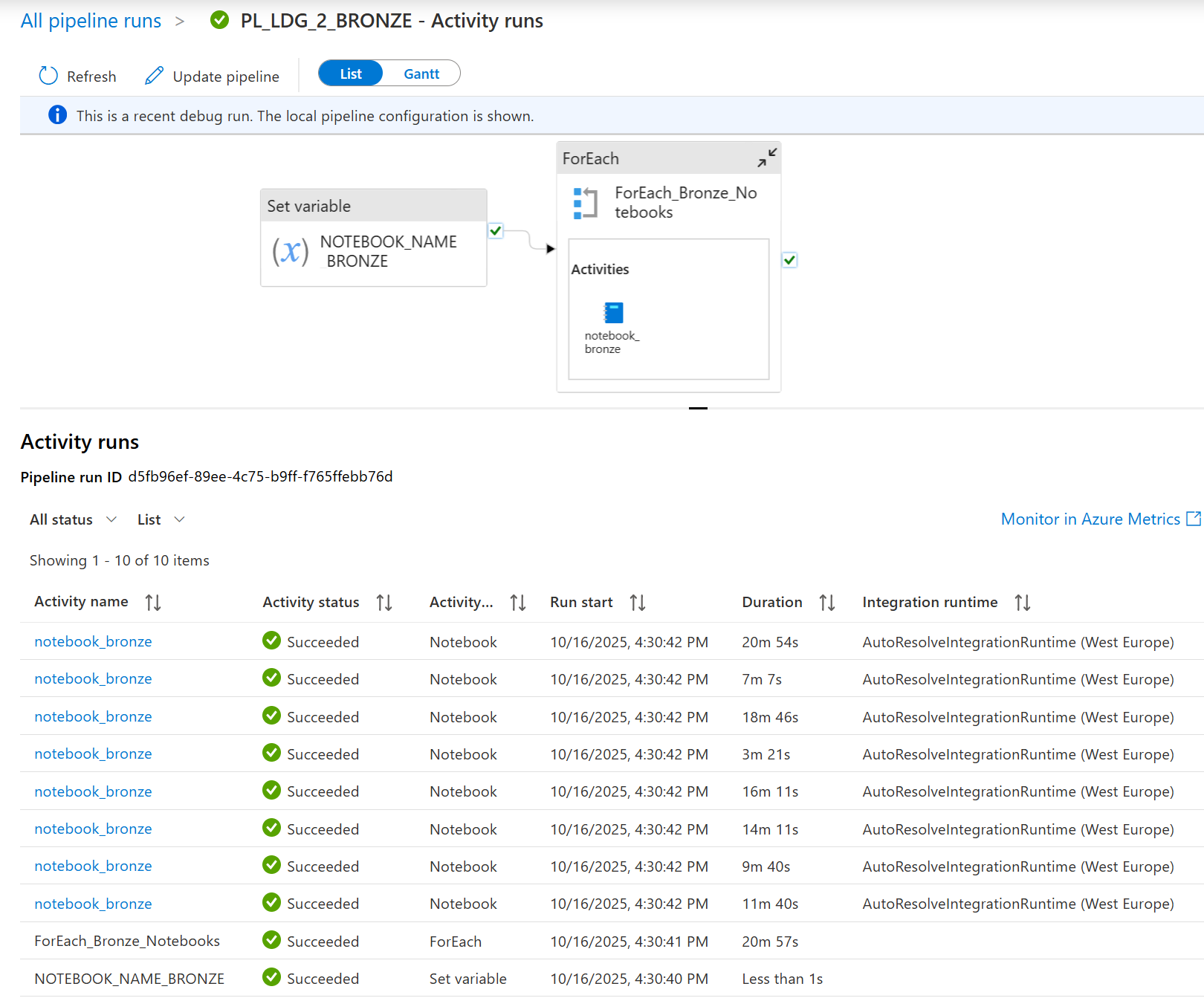
You can Debug or trigger your pipeline to test the pipeline. This screenshot shows the activity run results after you’ve debugged the pipeline PL_LDG_2_BRONZE.
All activities show ✅Succeeded. This means your entire pipeline logic worked without errors—from setting variables to running multiple notebooks in a loop.
Next steps:
- Deploy the pipeline to your production environment.
- Use “Add Trigger” to automate the pipeline (e.g., schedule it to run daily, or trigger it when new data arrives).
In short, a fully successful debug run like this confirms your pipeline is ready for automated, production-grade use.