 MetaKraftwerk

Commit Graph
The commit graph has already been used in various places in previous descriptions. First of all, it can be used to intuitively locate the commits of an instance in different releases. A dot always stands for a commit, a gray connection means that the two connected commits are successors or predecessors of each other. The commit graph is arranged in rows, each row representing one release. If two commits in different releases are connected, then either a branch or a merge is present at this point.
The commit graph is used in two places in the application. Firstly, in the history of an instance, which can be viewed via the "History" button. Secondly, the graph is displayed in each build below the instance data.
To get more information about a commit in the graph, just hover the cursor over the commit and you will get information about the time, user, commit description and commit type (build vs. commit).
The commits can have three different colors. First, a normal commit is always colored gray. A commit created for an instance on a successful build (which always happens for every built instance) is colored green. However, aborted or failed builds are still colored gray. Furthermore, various commits may be colored pink. These commits are used to determine the delta shown in the table above the graph. The commit for which this delta is to be determined (basis of comparison) is marked with a white arrow. It may happen that the selected commit is connected to more than one other commit via dashed lines. This happens when it is necessary to compare a build with two previous builds. This is because in order to determine the changes that are relevant for billing, the system looks in the two previous builds to see if the change had already taken place there (and was therefore already billed). If this is the case, the change is no longer taken into account for billing and is therefore not displayed in the table.
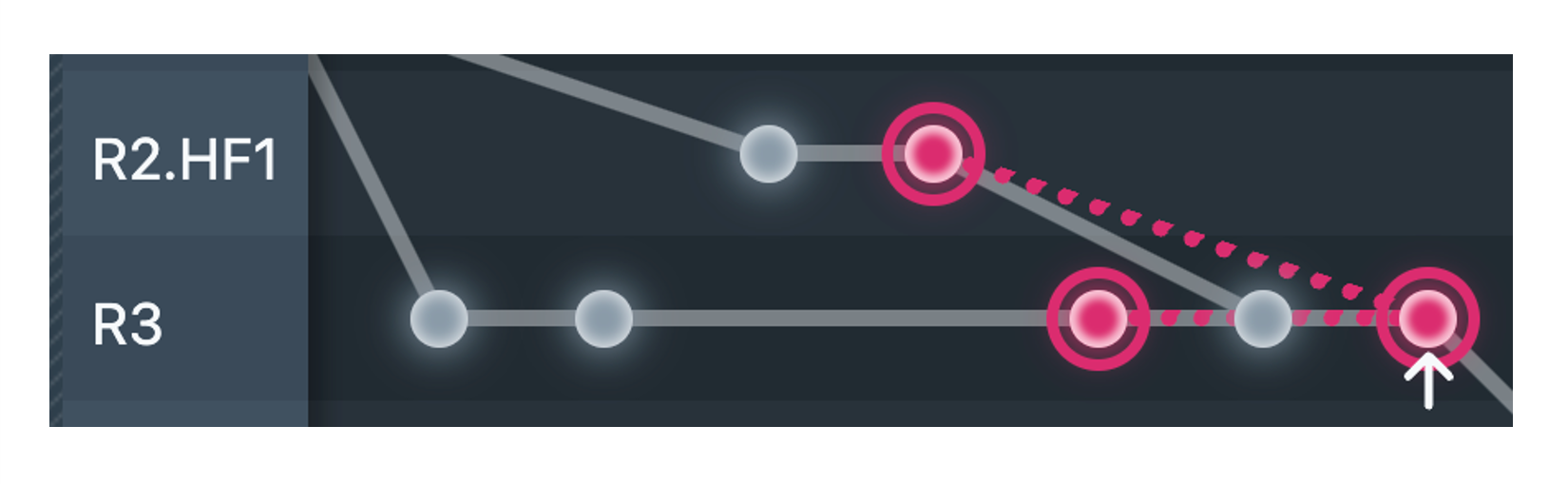
It is possible to move with the cursor inside the commit graph. With a left click you select a commit for comparison. The comparison base (white arrow) always remains the same in this case. However, only commits that are located before the comparison base in terms of time can be selected for comparison.
You can change the basis of comparison with a right click. This changes the white arrow to the clicked commit. The commit (or the commits if necessary) which are then used for the comparison are determined automatically, but can be changed in the following by selection (left click).
If the graph becomes too large for the available window, you can easily explore the whole graph by scrolling horizontally and vertically.