 MetaKraftwerk

Expression Editor
Please note
this guide is only relevant for developing ETL patterns with Informatica.
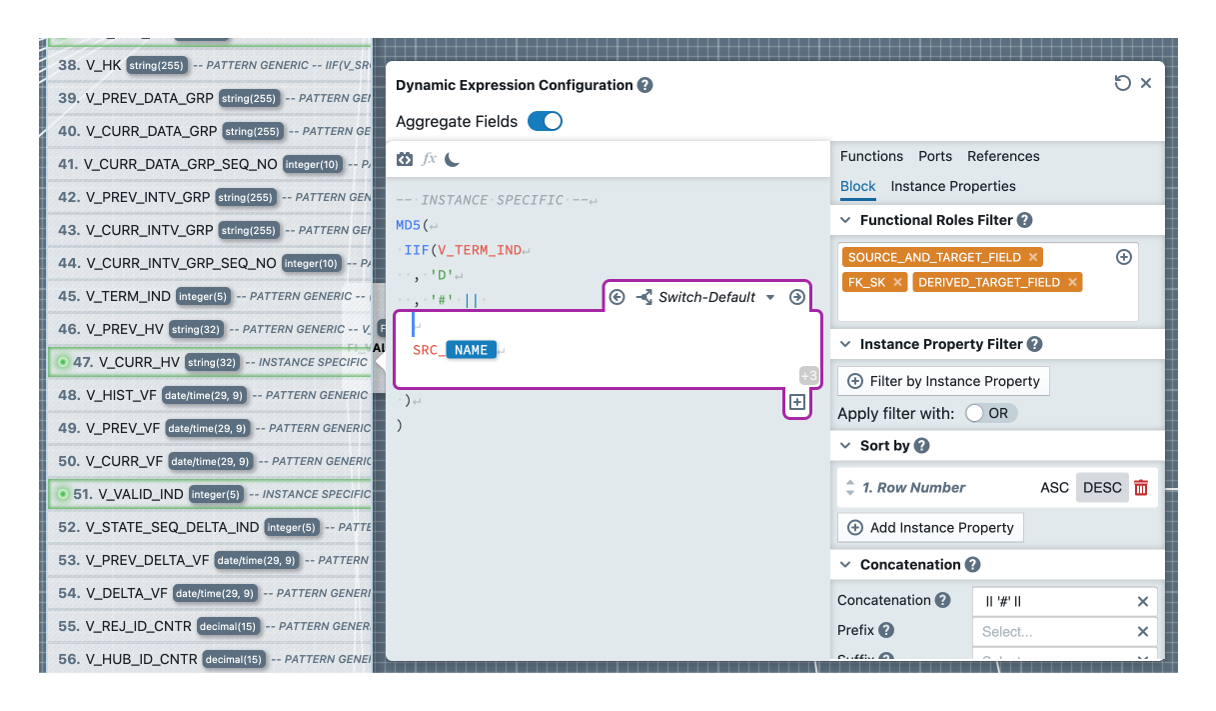
To define output ports and variables in expression and aggregate transformations, there is the Expression Editor. In this text editor code can be mixed with so called expression blocks. A block defines an insertion point where subexpressions and instance metadata should be inserted. To create a block, move the cursor to the desired location in the Text Editor and click the block button in the toolbar.
For each block you have to define (similar to the Port Editor) which functional roles should be used or how instance metadata should be filtered based on instance properties. For each record that passes through the filter, the text expression within the block is used in the result. In doing so, the developer has access to instance properties, variables, reusable expressions and other operators that will be replaced later during the build process. It is also possible to define several so-called switch cases for a block, which can be used to control which partial expression is to be used for a data set. This is useful if, for example, you want to calculate an MD5 value on multiple fields, but need to apply a TO_CHAR transformation depending on the data type of the field. A new switch case is created by clicking on the plus symbol at the bottom of the block and then assigning a name and defining a switch condition. You can switch between the different switch cases of a block using the selection in the header of the block. Within the block, the partial expression of the currently selected switch case is always displayed. The order of the switch cases can be adjusted using the small arrows within the selection.
There are always two predefined switch cases: Switch-Default and Block-Default. In the switch default, you enter the partial expression that is to be used in the default if no other switch case applies. In the block default you enter an expression that should be used if the filter of a block does not pass any fields, which happens, for example, if the selected functional roles are not contained in an instance.
Blocks can also be nested to define more complex expressions, such as nested statements. To do this, move the cursor to the position within the block where the sub-block is to be inserted. If you then click into the sub-block, you will see the section "Join On" in the block settings on the right side, where you can specify a join condition to the parent block.