 MetaKraftwerk

Validation of Instance Data
Data quality is also an important issue when it comes to metadata. This is because we want to ensure that only correct metadata is used for the creation of data objects and processes.
Constraints
Instance metadata is validated in MetaKraftwerk. To do this, it is possible to define constraints for a pattern. Constraints can be defined either globally for an instance property or specifically for a combination of functional role and instance property. A constraint can be used to check various aspects of metadata:
Enumerations: Definition of a list of permitted values
Regular expressions: Definition of a regular expression that must apply to the value
Uniqueness: If activated, the value must be unique within the instance
Occurrence: Possible selections:
- Optional: A value may be specified in this cell, but does not have to be.
- Required: A value must be specified here.
- Disallowed: No value may be specified here; the cell must be empty.
Metadata validation is always performed when the user changes a value in an instance. In addition, uploaded instance metadata is validated directly. Only instances that do not have any validation errors can be selected and built for a build.
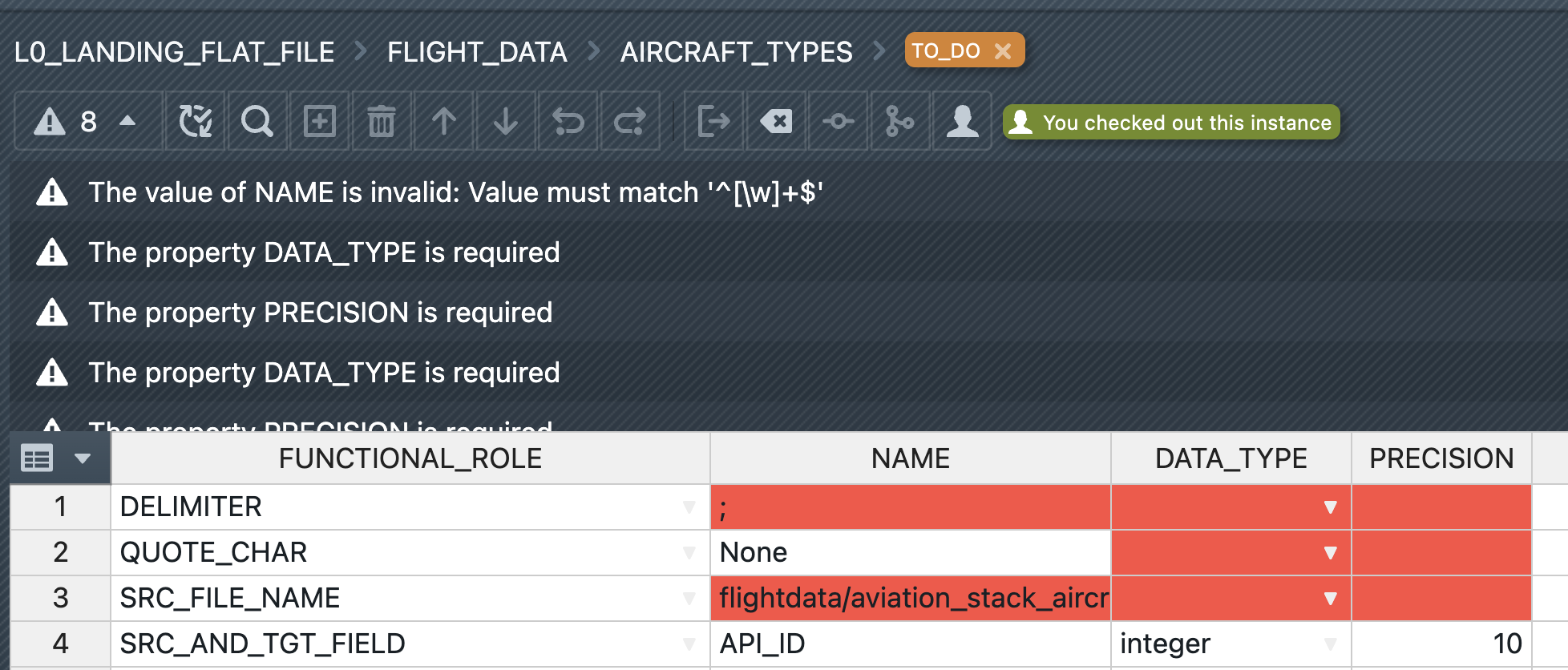
On the right, you can see how incorrect values are displayed in the table. In this case, the cells have a red background. All validation errors are listed below the toolbar. Clicking on a specific error directly selects the affected cell.
Instance Property Constraint
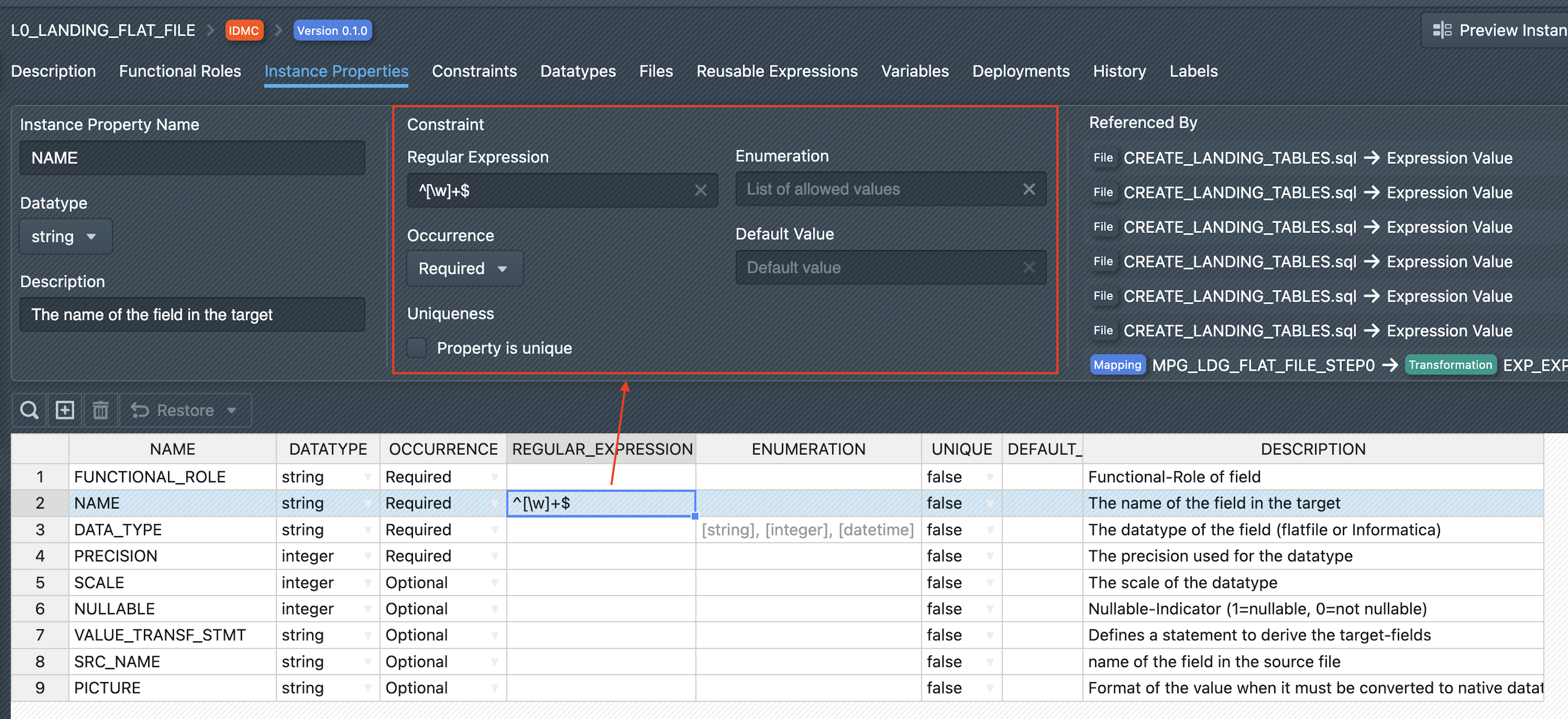
First, there are constraints that should apply globally to an instance property. These can be defined in the ‘Instance Properties’ section of the pattern settings. To do this, first click on an instance property in the list for which you want to define a constraint. In the detailed view of the instance property above, the constraint can then be defined in the ‘Constraint’ section. Here, the above-mentioned checks can be defined, which are then checked for values of the instance property within instances, i.e. in the corresponding column of the instance. In this case, uniqueness applies to all values within a column, regardless of the assigned functional role.
Specific Functional Role Constraint
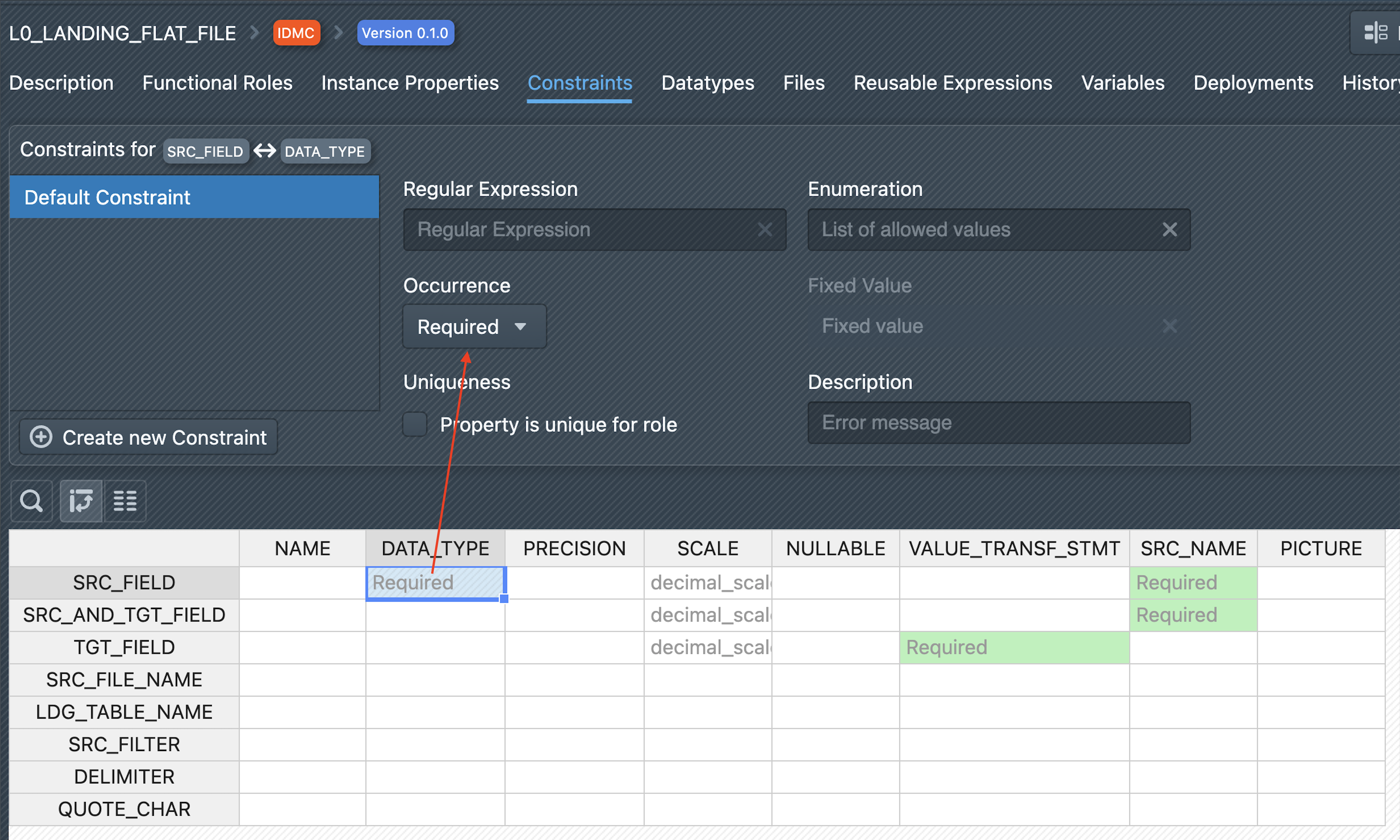
In addition to the global constraints for instance properties, it is possible to define specific constraints for the combination of a functional role and instance property. To do this, go to the ‘Constraints’ section of the pattern settings. A table is displayed below, showing the matrix of functional roles and instance properties. To define a constraint for a specific combination, click on the corresponding cell. The default constraint for this combination is now displayed in the detail view above. This is initially empty and can be equipped with the above-mentioned checks. It should be noted that the checks you define are only applied to the corresponding combination of functional role and instance property, i.e. in an instance, only the cells of rows that are assigned to the functional role and are located in the column of the instance property are checked.
Example:
Let us assume that there is a constraint on the combination of the functional role SRC_FIELD and the instance property DATA_TYPE. Then, in an instance, only the following cells marked with ✔ are validated with the constraint:
| FUNCTIONAL_ROLE | NAME | DATA_TYPE | PRECISION |
|---|---|---|---|
| TGT_FIELD | FIELD_A | string | 20 |
| SRC_FIELD | FIELD_B | integer ✔ | 10 |
| SRC_AND_TGT_FIELD | FIELD_C | string | 40 |
| SRC_FIELD | FIELD_C | decimal ✔ | 18 |
Conditional Constraints
In addition to default constraints, which are always applied to a combination of functional role and instance property, there are also conditional constraints. With conditional constraints, you define a condition that must apply to a metadata record in order for the constraint to be applied.
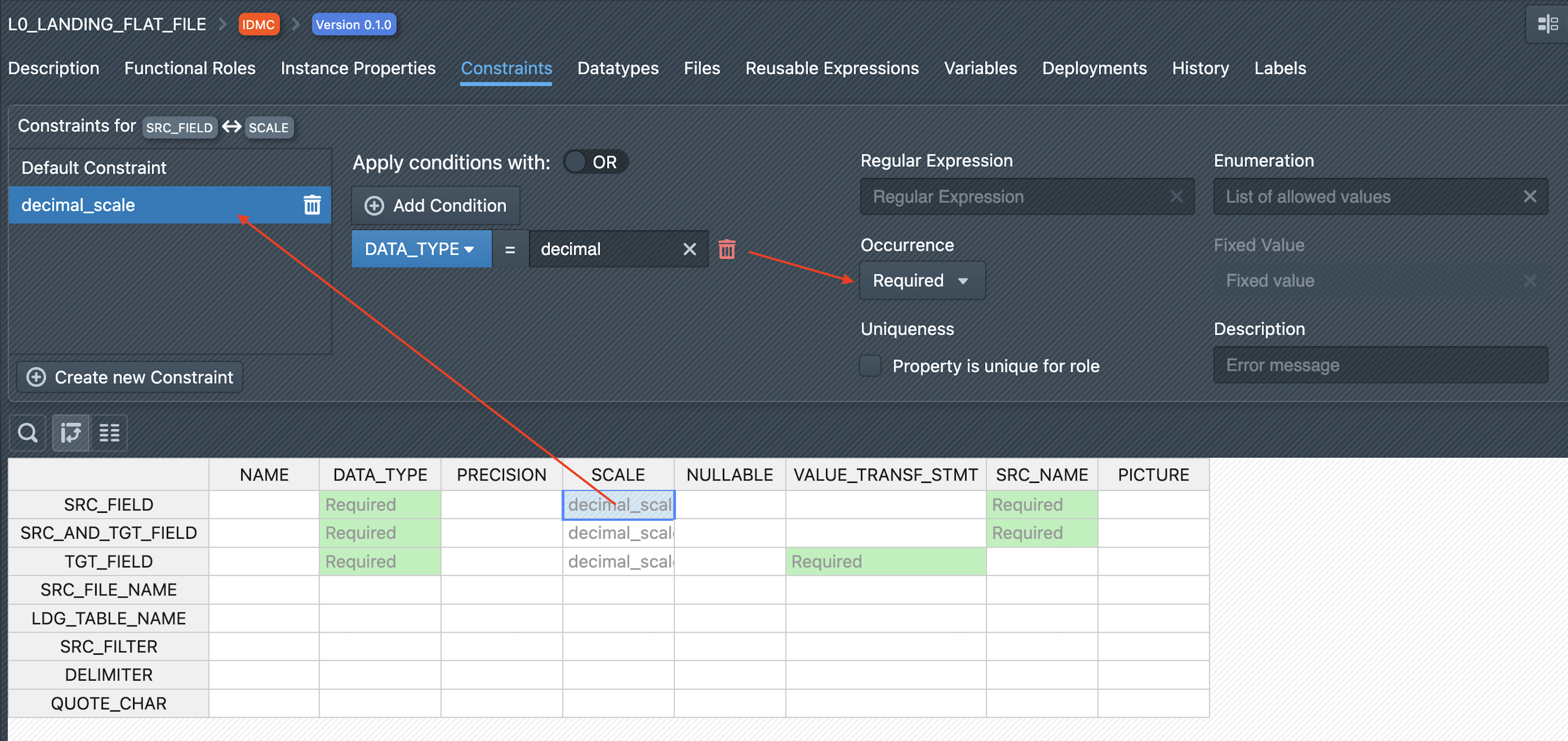
To create a conditional constraint, first click on the desired combination of functional role and instance property in the table below. Now you can create a new conditional constraint using the ‘+ Create new Constraint’ button. First, you must assign a name to it. Then you must define the condition. To do this, click on ‘Add Condition’. In the drop-down menu, select an instance property to which the condition applies. In the text field, enter the value that the instance property should have for a row in order for the constraint to take effect. Instead of the operator = (equality), you can also select the operator != (inequality). Several instance properties can also be selected as conditions, which can then be linked using AND or OR.
Once the condition has been defined, the constraint must be defined in the right-hand section. This is done in the same way as for a normal constraint, i.e. the value range, regular expression, uniqueness or occurrence must be specified here.